Debugging your Workflows
One of the best features of Workflows is the ability to debug. We will use the example workflow created in Creating your first workflow to demonstrate.
Debugging Inputs/Outputs of Steps
With you have a step selected, the Debug Inputs & Debug Outputs tabs in the Step configuration panel can be used to view the inputs being passed to the step, and the outputs being passed out. For example, with the Math Operation step selected, we can see the inputs & outputs:
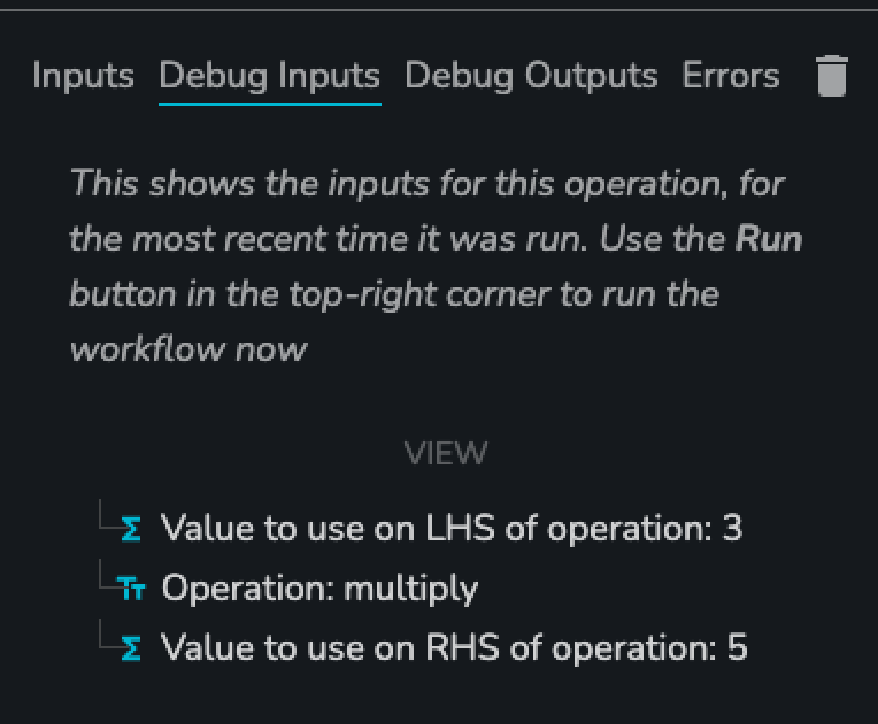
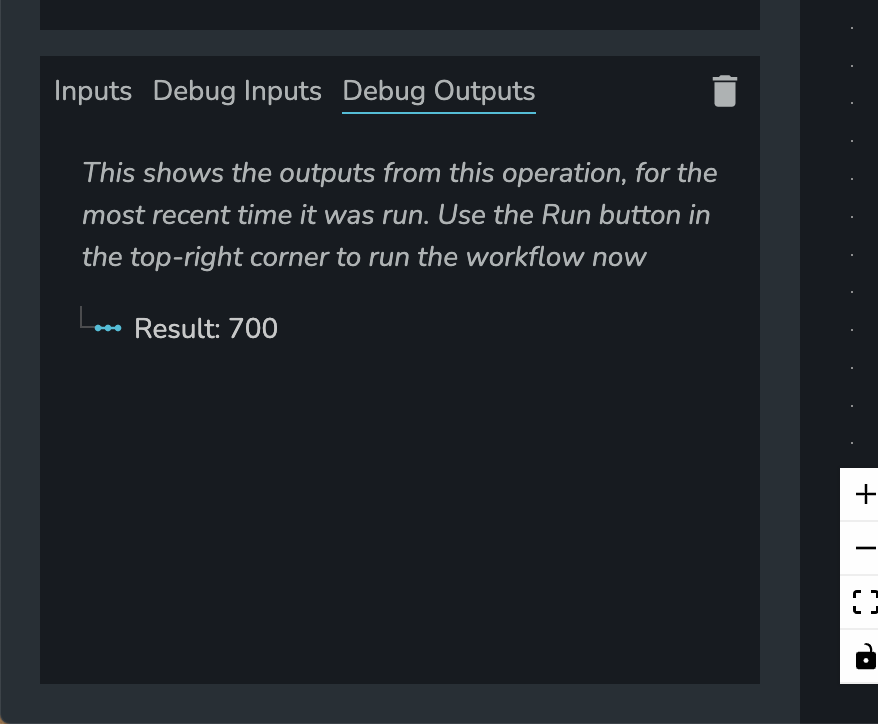
Note that you may encounter a time when there are no values shown - this could be because the workflow has not been run yet. Other times, you may see values that appear to be stale, perhaps because you changed the inputs going into the step. You can use the Run button in the top-right corner of the screen to run the workflow at any time, which will refresh these values.
Workflow Logs
Under the Logs tab in the nav-bar, you can see overall logs for the app. This will include an entry for each time a workflow is run. You can use the Bin icon to clear the logs.
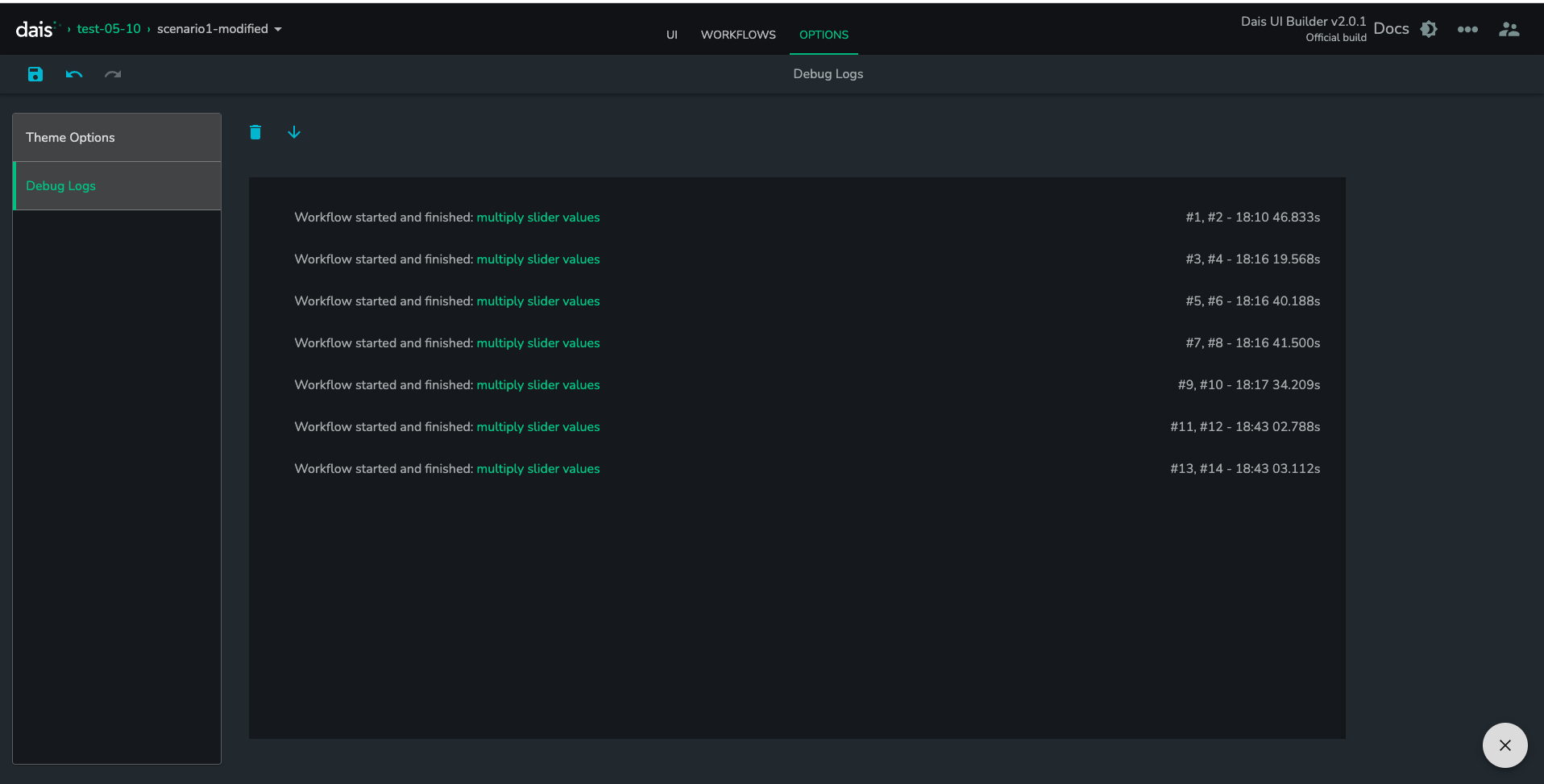
This is useful for viewing which workflows are running, in what order, and how long they are taking.
Note that sometimes the start & stop entries can appear separately - this mainly happens on workflows that contain asynchronous steps (i.e. an HTTP Request).